
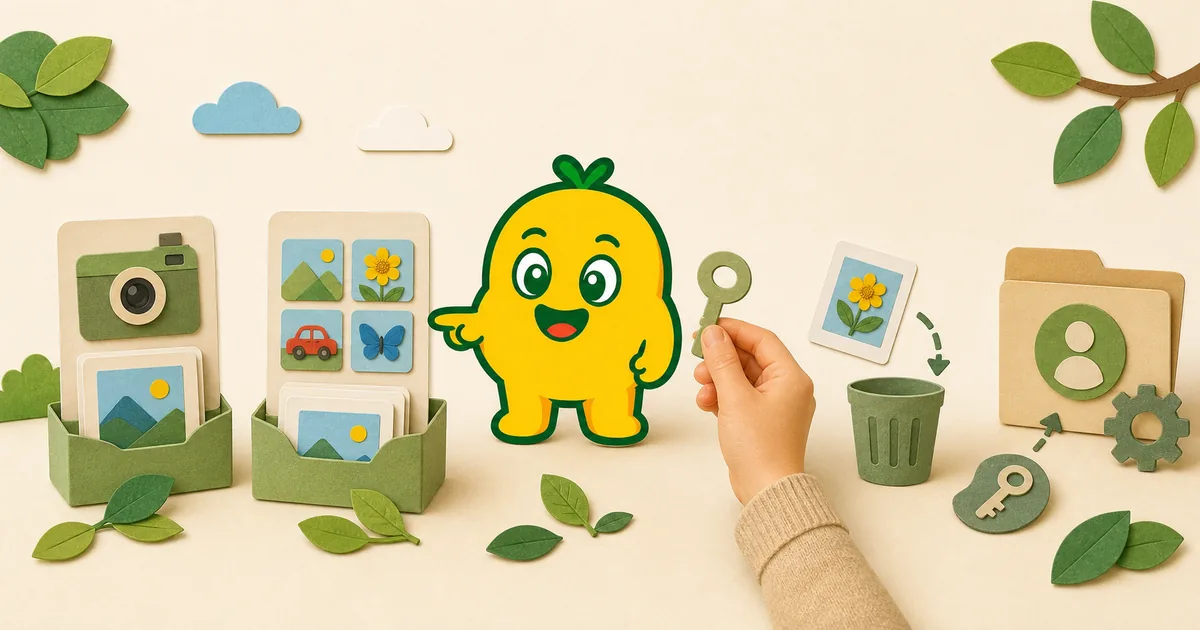
Why KORENANI asks for photo access
KORENANI can use the iPhone or iPad camera to take a new photo and the photo library to choose an existing image. These are separate device permissions controlled by iOS or iPadOS. A parent or guardian should review the requested access and decide what is appropriate for the family.
The app supports iPhone and iPad on iOS or iPadOS 16.0 and later. Consumer distribution is through the App Store; Android is not currently offered.
Camera and photo-library permissions
Camera access
Camera access lets the app take a new recognition photo. Keep camera use with a parent or guardian and avoid capturing identifiable people, private documents, addresses, tickets, school information, or other personal details unnecessarily.
Photo-library access
Photo-library access lets a family choose an existing image. Depending on the options provided by iOS, families may be able to allow access to selected photos rather than a broader library. The available controls depend on the device and OS version.
Permissions can be reviewed later in the device Settings. Apple provides separate instructions for reviewing access to information such as Photos and changing access to hardware such as the camera. Changing a device permission affects future access; it does not by itself describe what happens to a photo that was already sent for recognition or saved to an account.
What happens during recognition
The current implementation follows this general flow:
1. The iOS app sends photo data to the KORENANI API. 2. The API sends the image to an external recognition service selected by General, Plant, or Insect mode. 3. The service returns information such as a label and description. 4. If the family saves the discovery, the image and related information are managed with the parent account, child profile, and item. 5. Labels, descriptions, audio, quiz information, and progress data can also be associated with the account experience.
This means KORENANI should not be described as processing every photo only on the device. Read How Photo Data Flows During Image Recognition for more detail.
Individual item deletion
KORENANI implements deletion for individual saved items in the iOS app and API. Families can remove a discovery they no longer want in a child's collection.
Deleting an individual item is different from changing camera permission or deleting the entire account. This guide does not promise that deletion is immediate, irreversible, or complete across every external provider; retention and deletion timing require the current policies and service agreements to be read together.
Account deletion
Account deletion is implemented in iOS settings and the API. Because an account can include child profiles, saved photos, recognition information, audio, quizzes, and progress, a parent should review the action carefully before confirming it.
This article does not state a guaranteed completion time. If a family needs confirmation about a specific account, use the current support or contact route listed on the KORENANI site.
Important distinction: deletion and model training
The current privacy policy says uploaded images may be used for recognition-model improvement and describes anonymization and an opt-out setting. The repository audit did not find a corresponding user consent or opt-out flow for that purpose. Until the legal policy, vendor practice, and implementation are reconciled, this article does not claim either that photos are used for training or that they are never used for training.
Parent checklist
| Question | Where to review it |
|---|---|
| Can the app use the camera? | iPhone or iPad Settings |
| Which existing photos can be selected? | Photo permission options in device Settings |
| Is a discovery saved? | The selected child's collection |
| Can one saved item be removed? | Individual item deletion in the app |
| Can the account be deleted? | Parent-managed settings in the app |
| What does the legal policy currently say? | The current Privacy Policy and Terms |
Use the minimum photo needed
- Frame the object without faces or personal documents where possible.
- Choose an existing photo only when it is appropriate to send for recognition.
- Save only discoveries the family wants to revisit.
- Review child collections periodically and remove unwanted items.
- Keep account, settings, external links, and deletion actions with the parent or guardian.
Read the current policies
This guide explains the product flow in plain language but does not replace the Privacy Policy or Terms of Service. For recognition limitations, also read What to Do When an Image Recognition Result Looks Wrong.